What's New
Your QR codes are now just a wallet tap away!
Users can now
save QR codes directly to Apple Wallet or Google Wallet
, making it easier to access and present the right QR code during offline customer interactions—without digging through a gallery full of saved images. This capability is available for both existing and newly created QR codes
. Key Highlights
*
Save to Digital Wallet:
Add QR codes directly to Apple Wallet or Google Wallet
, depending on the device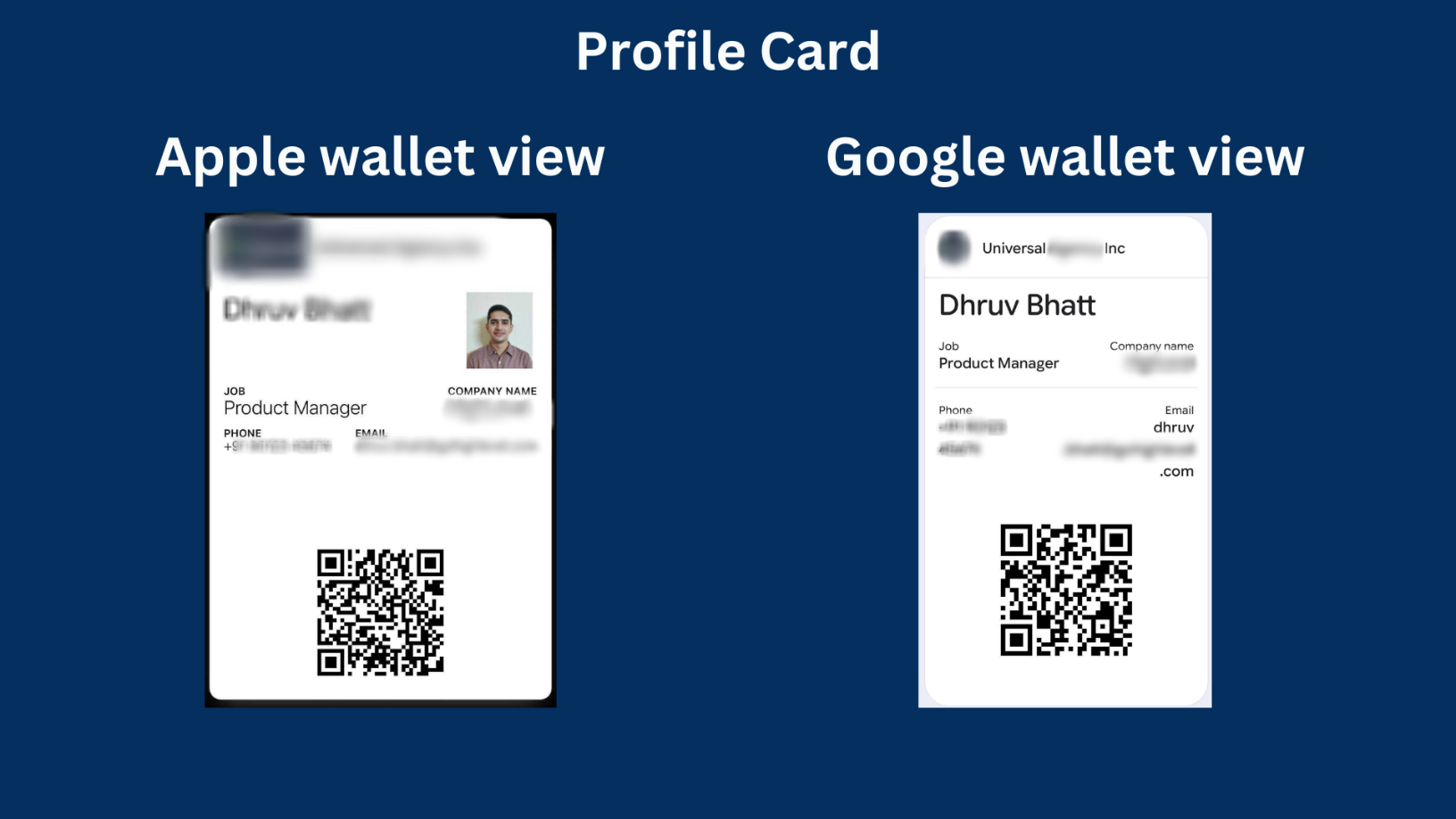
*
Quick Offline Access:
Open your wallet, select the right QR code, and have a customer scan it in seconds*
Know Which QR Is Which:
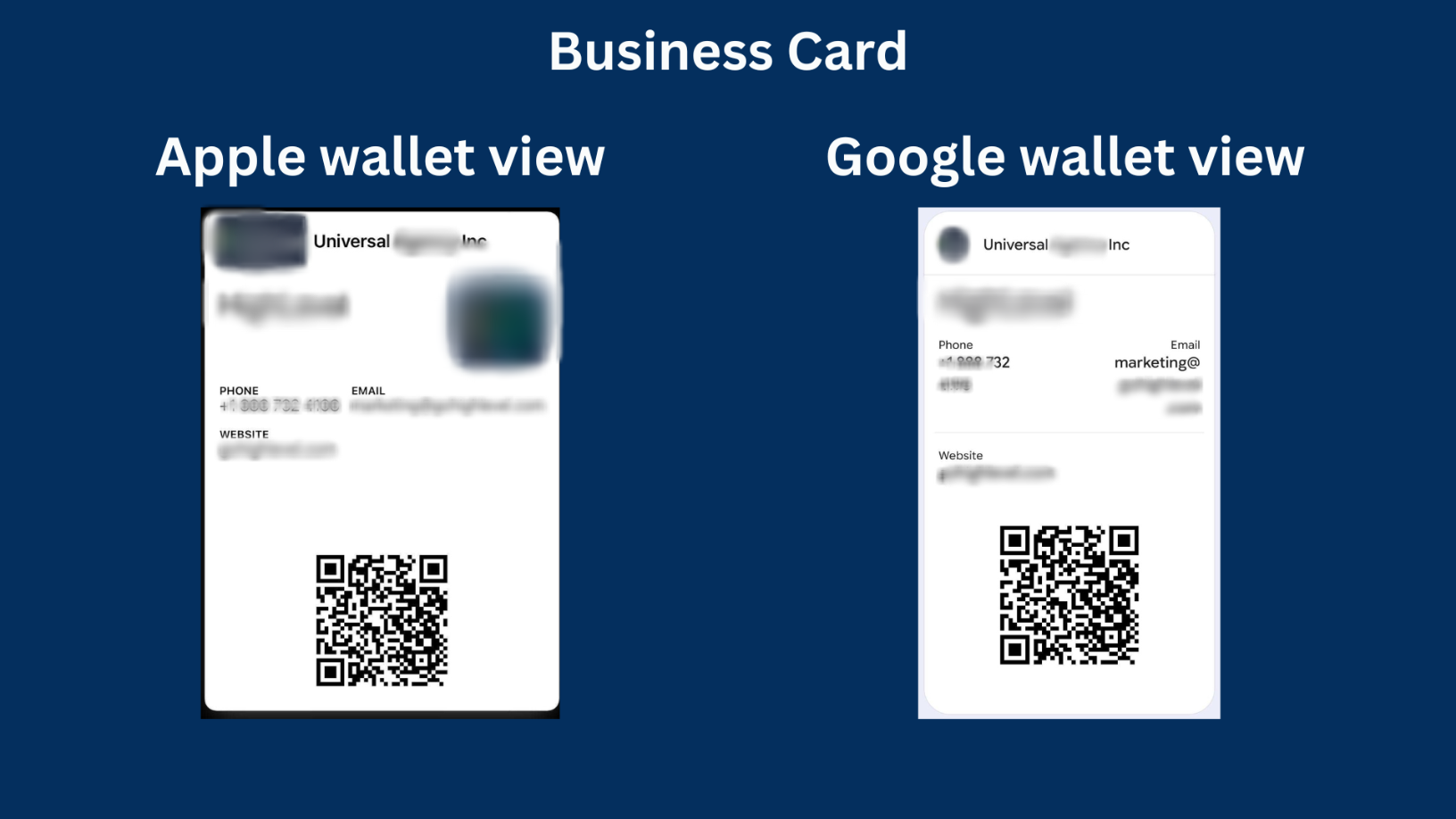
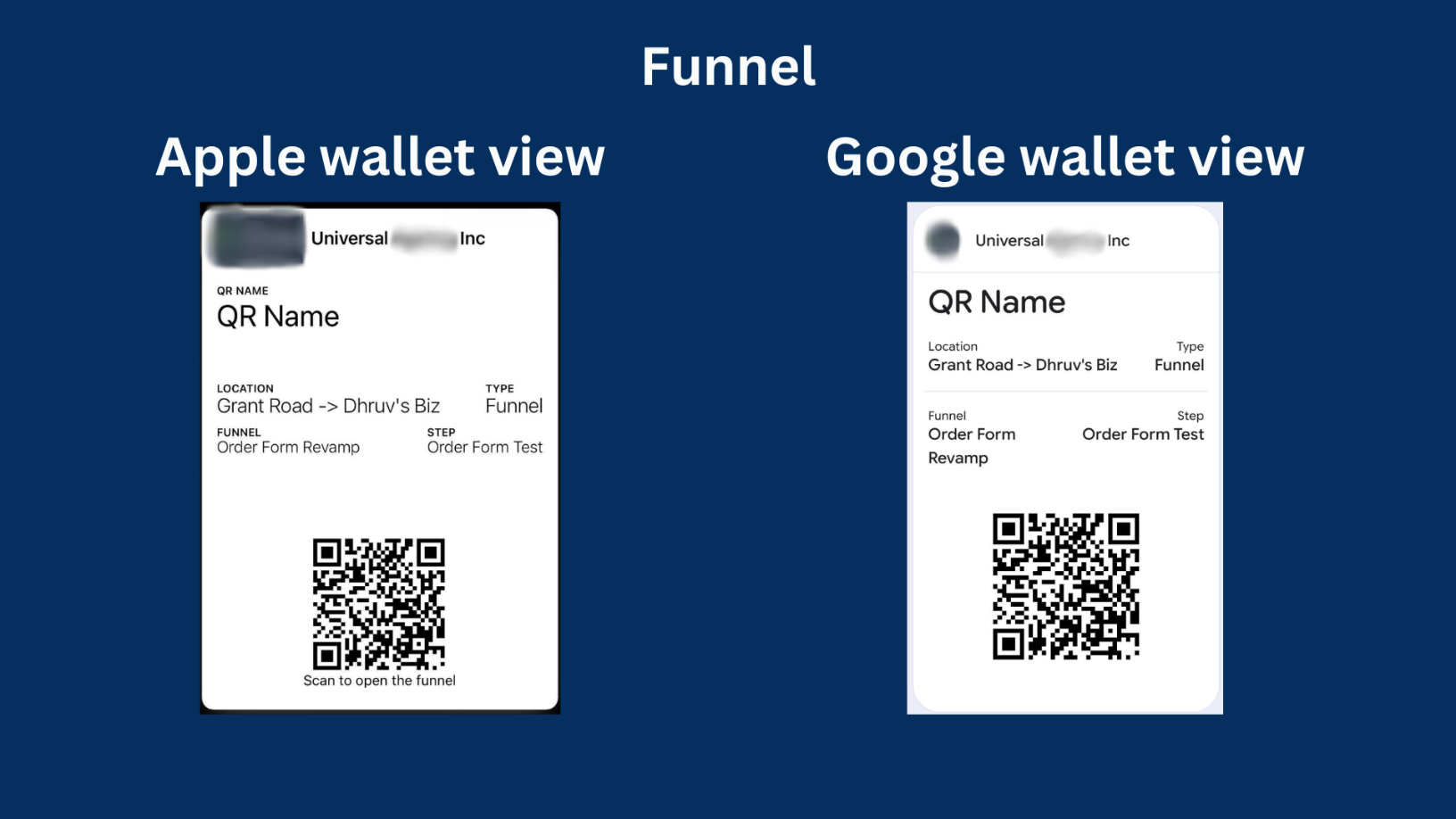
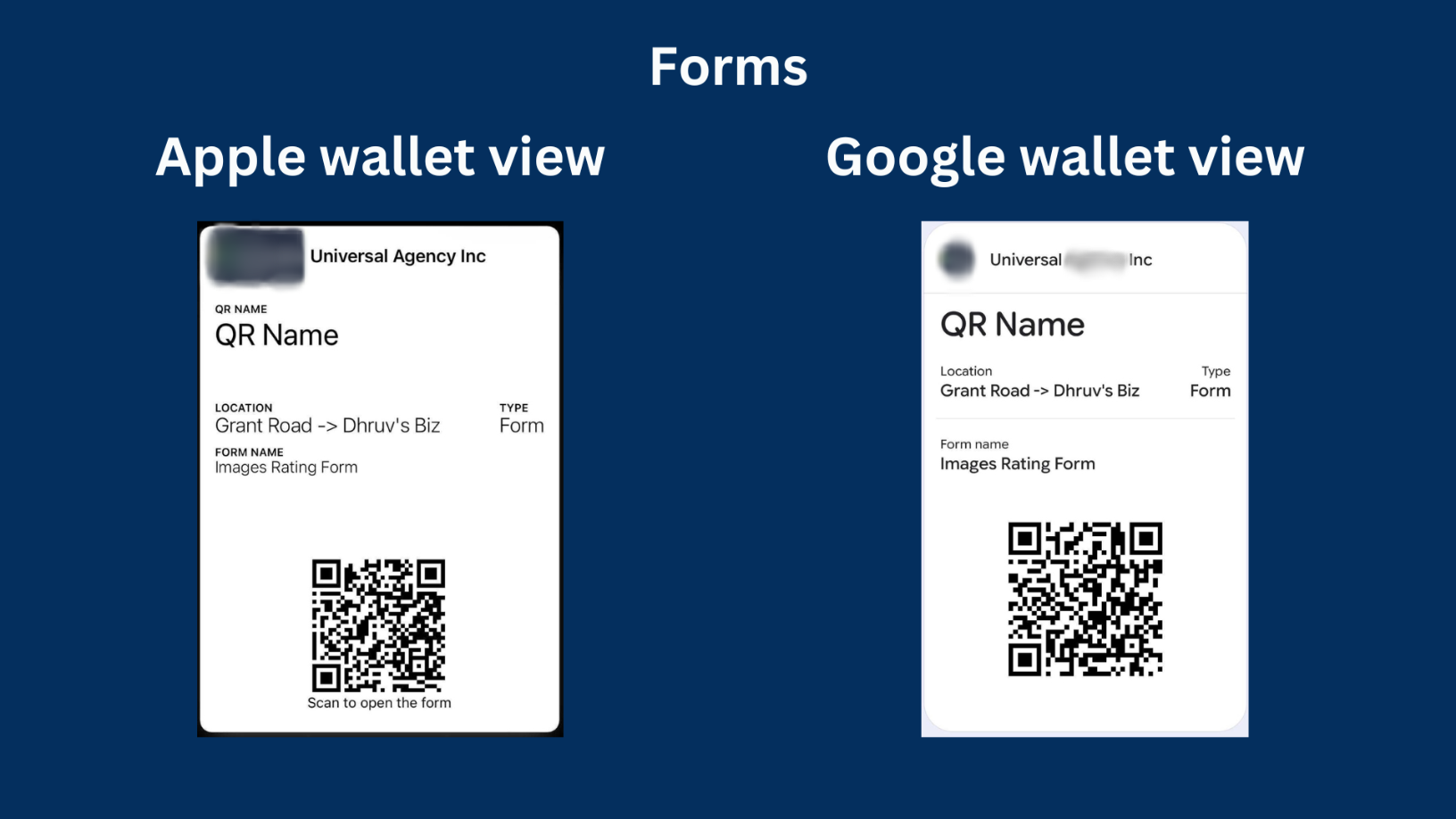
Wallet passes surface useful QR code details, helping users understand the QR type, associated location, destination/context, and other relevant information
*
Wallet-Native Pass Designs:
QR code passes are designed specifically for each wallet, taking advantage of the configurations supported by Apple Wallet and Google Wallet
*
Account Branding:
Wallet passes currently display Account Branding in the header
, helping drive account and brand attribution*
Works With Old & New QR Codes:
Existing QR codes can benefit from the feature too—there's no need to recreate themWhy This Matters
Previously, users who needed QR codes during offline interactions often saved them as images in their phone gallery. ?
As the number of saved QR codes grew, it became difficult to tell:
* Which QR code was meant for which purpose
* Where a particular QR code redirected
* Whether it represented a
profile, website, funnel, or another QR code type
With Digital Wallet support, users can keep their business QR codes organized and readily accessible alongside useful contextual information.
Instead of searching through photos, users can simply
open their digital wallet → choose the appropriate QR code → let the customer scan → drive the conversion.
?How It Works
- Navigate to the QR Code Builder.
- Create or edit your QR code and proceed to the final stepof the builder.
- Select the option to add the QR code to your digital wallet
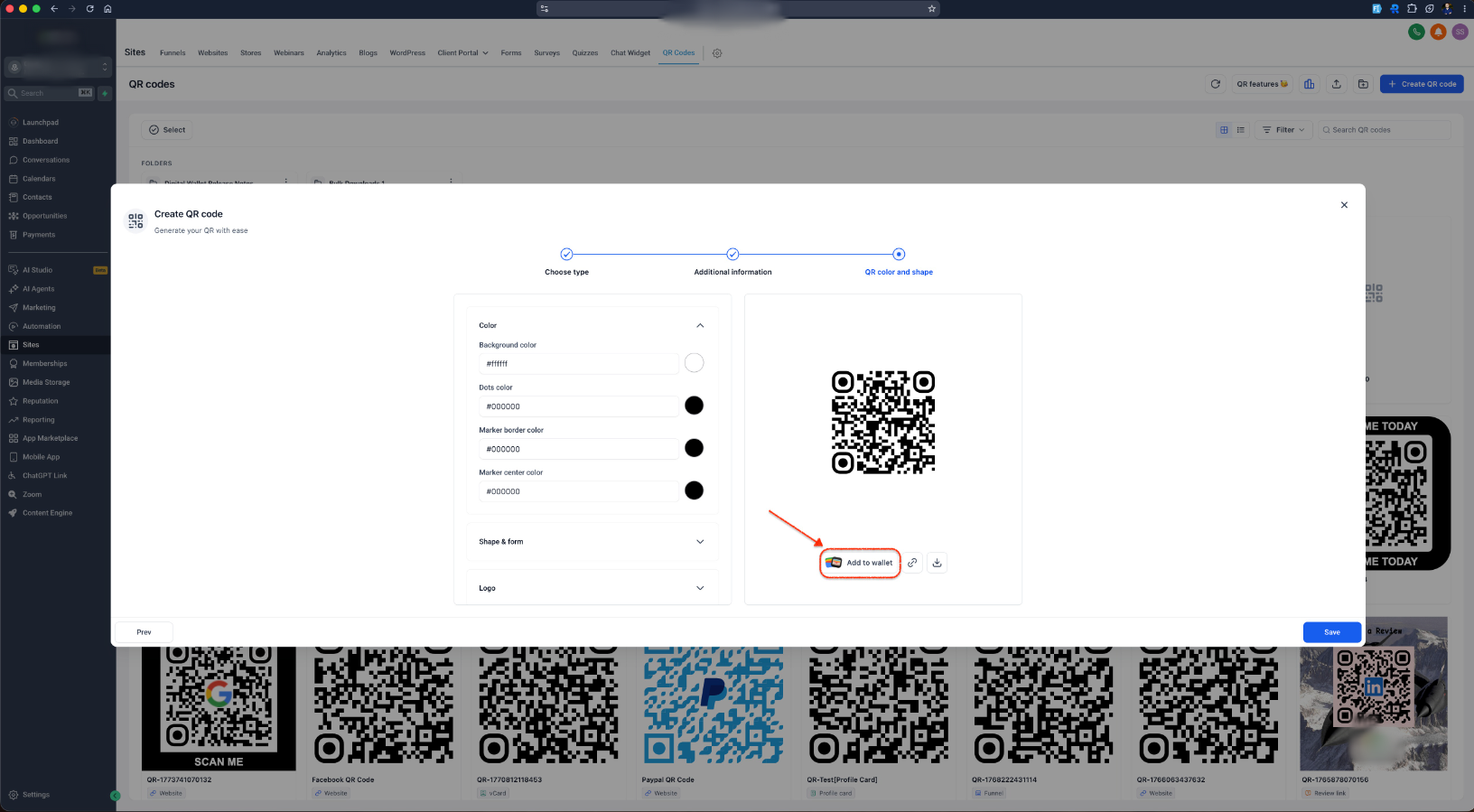
- A new QR code will appear for you to scan. ?
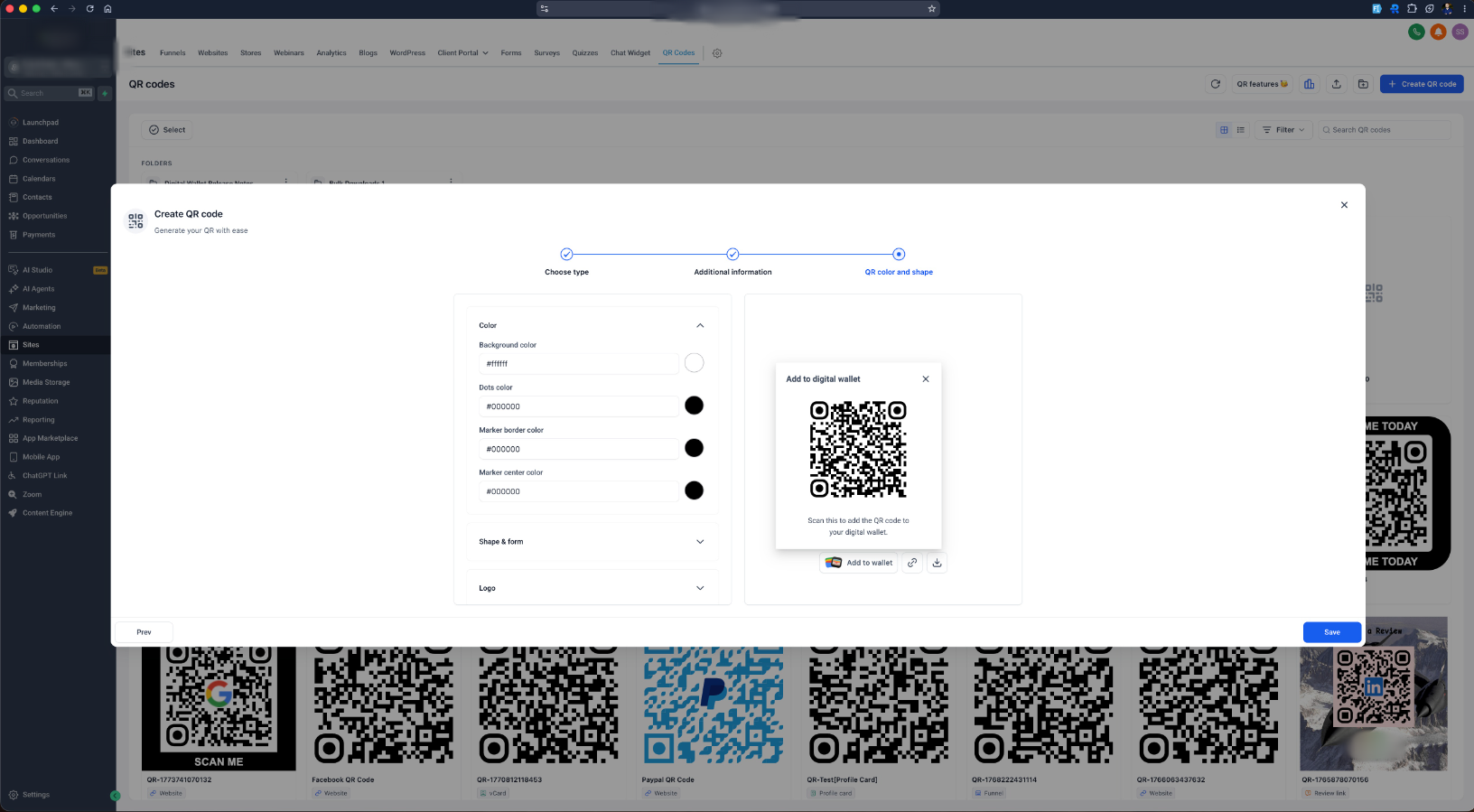
- Scan it using your phone.
- Based on your device/OS, the QR code pass will be added to Apple Wallet or Google Wallet.
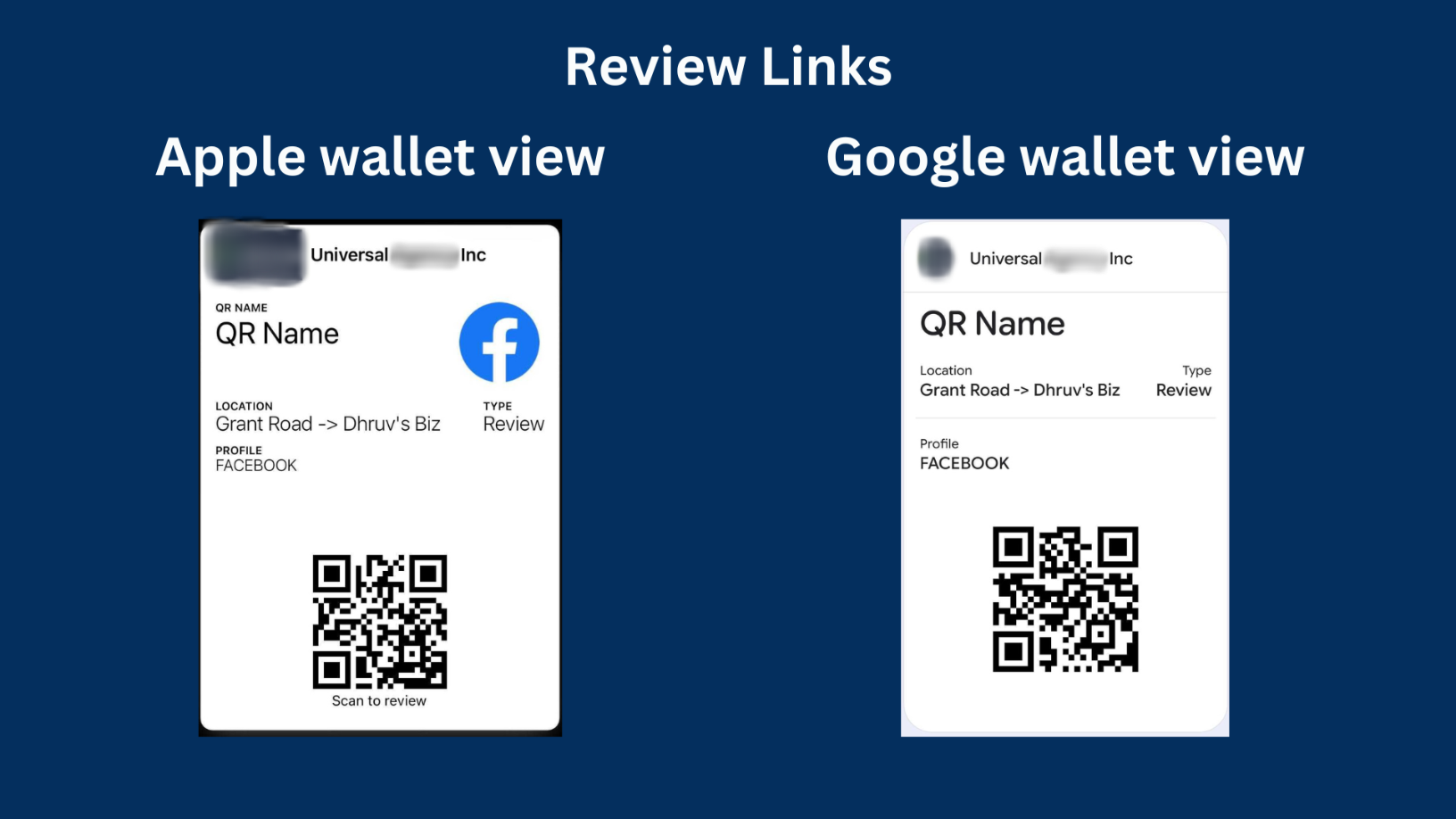
- Open your wallet whenever you need it, select the relevant pass, and present the QR code for scanning.
Apple Wallet vs. Google Wallet
The appearance of the wallet pass will
differ between Apple Wallet and Google Wallet
because each platform provides a different level of pass customization.For example,
Apple Wallet supports displaying a Profile Image on the pass, while Google Wallet currently does not support this configuration
.As a result, users should expect some visual differences depending on which digital wallet they use. The experience has been optimised around the capabilities available on each platform while keeping the important QR code information easily accessible. ?
Account & Brand Attribution
Each wallet pass currently displays
Account Branding in the header
. This ensures that the account and its brand remain visible when the QR code is saved and subsequently presented from a customer's digital wallet.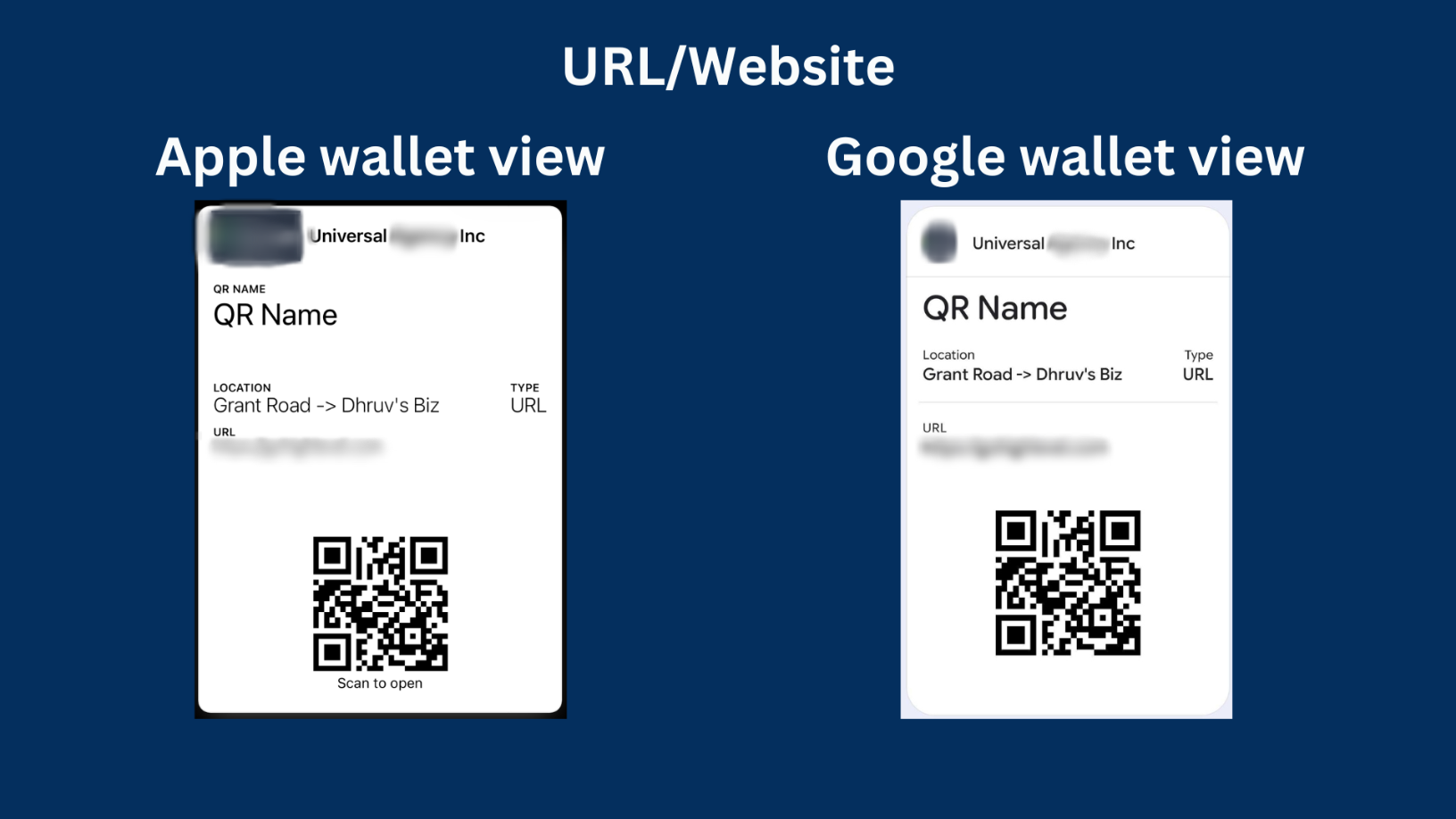
Account Branding is
currently enabled by default
. We plan to make this optional in a future iteration
, providing greater control over how branding appears on wallet passes. Notes
* The feature supports
both old and new QR codes
* Wallet passes include important contextual details about the QR code to make identification easier
* Pass designs can vary between
Apple Wallet and Google Wallet
based on the configurations supported by each platform*
Account Branding is currently displayed in the wallet pass header
and is planned to become optional in the futureA small addition to the wallet, but a big improvement for QR codes on the go. ?⚡
Was this article helpful?
That’s Great!
Thank you for your feedback
Sorry! We couldn't be helpful
Thank you for your feedback
Feedback sent
We appreciate your effort and will try to fix the article